The F5 Hotkey
The F5 key is a great shortcut key in many of the Office programs for everything from navigating, inserting named ranges into formula, and starting a slide show.. F5 hotkey in Excel In Excel, pressing F5 will bring up the
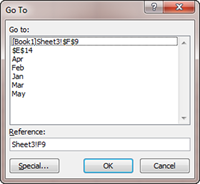
The F5 key is a great shortcut key in many of the Office programs for everything from navigating, inserting named ranges into formula, and starting a slide show.. F5 hotkey in Excel In Excel, pressing F5 will bring up the
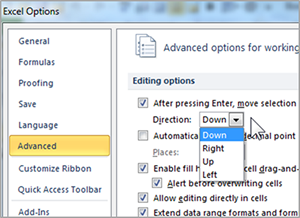
With Excel open, click the File Tab Click Options (towards the bottom of the menu) Click Advanced. In the Editing Options section, where it says “After pressing Enter, move the selection” change the direction to right Close out of the
Go right, not down in Excel 2010 Read Post »

When you have a document that spans multiple pages, you might want your column titles/headers to be repeated on each page. Print Excel title columns and rows with these instructions. Click the Page Layout tab In the Page Setup group,
Print Excel Title Columns and Rows Read Post »
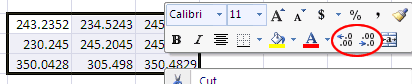
By default, Excel shows the number of decimal places that can comfortably fit in a cell. If the cell is narrow, it might only fit one or two. A wider cell can fit many more. Sometimes, however, I want to
Decimal Places in Excel Read Post »

Identify cells and data with Excel name ranges. Excel name ranges make finding and identifying data easier. They can also be used in formulas in place of cell references. This makes formulas easier to understand and build. To use Excel

Have you ever needed to reformat data so that the columns were the rows and the rows were the columns? Transposing in Excel is straightforward and easy. Select your data Copy your data with Control + C Click on the
Transposing in Excel Read Post »
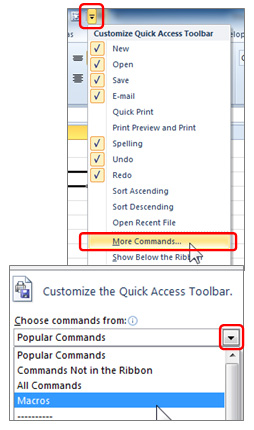
Once you have created a macro, you can activate it in one click by adding it to the Quick Access Toolbar Click on the arrow at the end of the Quick Access toolbar and choose More Commands. This will open
Adding Macros to the Quick Access Toolbar in Excel Read Post »
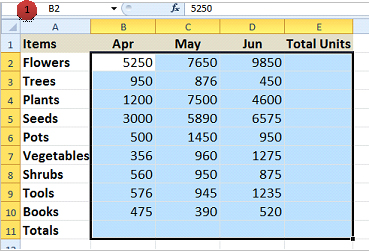
You can quickly sum a block of data (both Rows and Columns) in Excel with just one click. Start by selecting the data including the cells that will contain the SUM Formulas. (in our example Column E and Row 11)
Microsoft Excel: Quick Sum a Data Range Read Post »
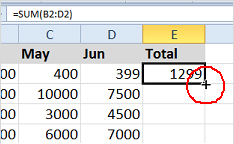
Filling down an Excel Formula in a column can be quickly achieved by positioning the cursor on the lower right corner of the cell and Double Clicking. The formula will repeat to the end of the data. For more ways
Double Click to Fill Down a Microsoft Excel Formula Read Post »

Hiding certain rows or columns in Excel can make viewing complex, detailed information easier to read. Grouping Rows in Excel allows you to quickly collapse and expand similar data to create more useful views. Select the rows with similar data
Grouping Rows in Excel Read Post »