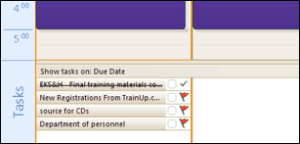
Add Task View Below Calendar to Schedule Your Day
You can quickly schedule time for your tasks on your calendar by dragging the task to your calendar, when you add the Daily Task List to your calendar view. When does an item go on your Calendar, and when does it go on your Task list? If it is something that has to be done today and needs a block of time scheduled to complete it, then put it on your calendar to block the time. Any other item can stay in your task list, so that you can address it today if you have time, or in the future when it is closer to its deadline.
Being able to combine views in Outlook is part of what allows us to be more efficient in our day-to-day work life, as having enough time to get everything done seems to consistently elude us. Therefore, anything we can do with our software to aid in this process is worth exploring. Adding a task view below our calendar view is one of the ways we can eliminate the need to constantly flip between the two areas in Outlook.
Since calendar events are separate from tasks, and tasks typically have some kind of due date, this combination view allows a user to ensure overbooking does not happen. When tasks or calendar events are out of sight, they are quickly out of mind.
There are a few options for this view, which include a normal or minimized view, and the ability to select tasks being viewed by start date or due date. Another option available to the user is ability to show completed tasks or not to show them.
Also, once you add your Daily Task List to your calendar view, you can schedule time on your calendar for a task by simply dragging the task up onto your calendar.
Check out this video to see how to add the Daily Task List to your calendar view: